AI Video Generation in 2026: How Text-to-Video AI Works
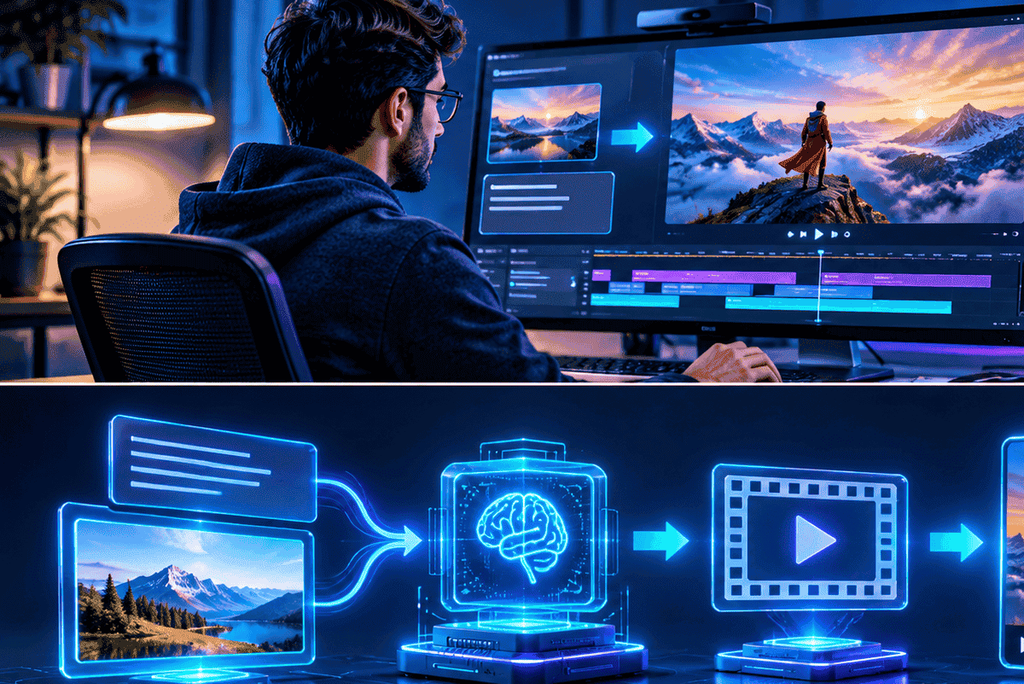
AI video generation helps creators, marketers, teachers, and businesses make videos with artificial intelligence. You can write a prompt, upload an image, or use both. Then, an AI model turns your idea into a moving clip. Today, many tools also offer better motion, image references, and generated audio.
In this guide, you will learn how AI video generators work, how text-to-video differs from image-to-video, and how to write stronger prompts. You will also explore popular tools and practical tips. If you want to compare free options, read our guide to free AI video generator websites.
What Is AI Video Generation?
AI video generation uses artificial intelligence to create or change video. You can start with written instructions, a still image, or existing footage. For example, you might ask a tool to show a product rotating on a studio table. Alternatively, you can upload a photo and ask the AI to add movement.
The tool then creates a short clip for you to review and edit. However, the result may need some work. Faces, objects, and backgrounds can change between frames. Text may also look incorrect. Therefore, always check the video before you publish it.
How Does Text-to-Video AI Work?
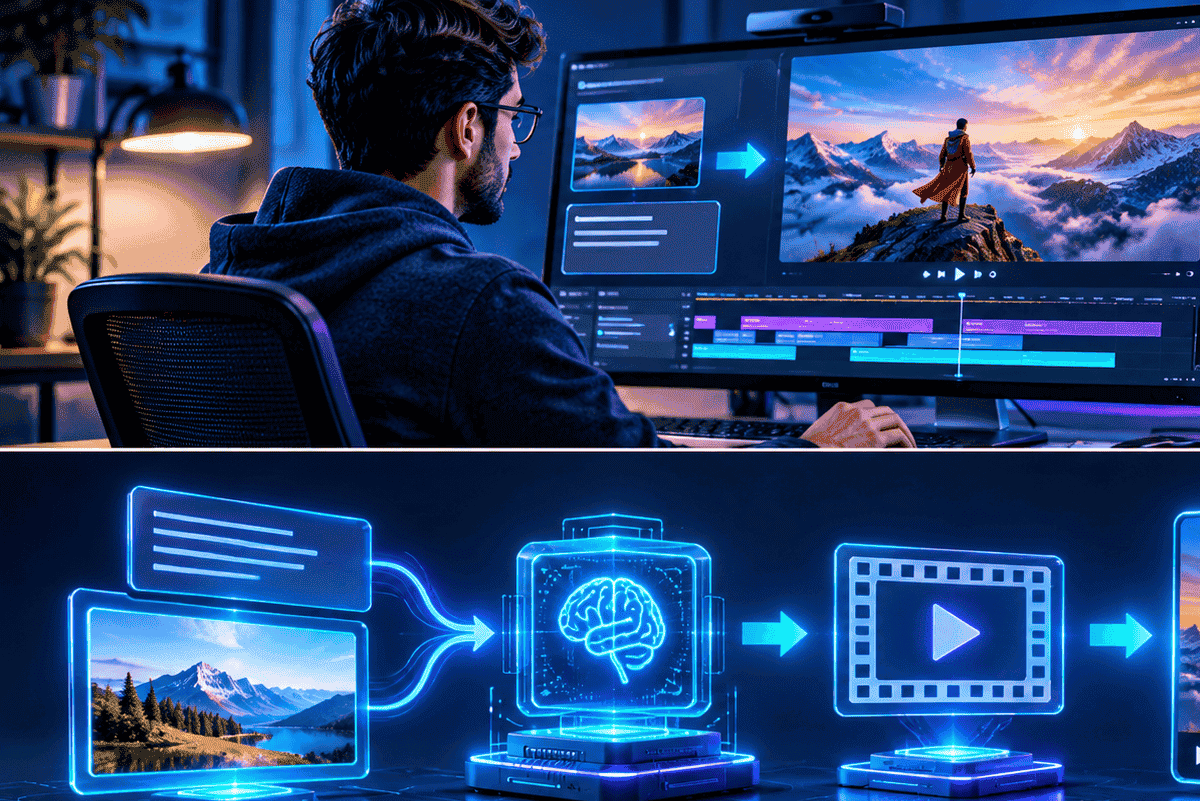
A text-to-video model reads your prompt and creates a sequence of frames. During training, the model learns patterns related to objects, scenes, lighting, and movement. It uses those patterns to build a video that matches your description.

Most tools follow a similar process:
- Enter a prompt: Describe the subject, action, location, and visual style. You can also add a reference image if the tool supports it.
- AI reads your idea: The model identifies the main objects and movements in your instructions.
- Frames are created: It generates a series of images that form a moving scene.
- Review the clip: Watch the result and check its movement, timing, and visual details.
- Edit and export: Finally, add titles, music, or other changes before sharing your video.
Text-to-Video vs. Image-to-Video: What Is the Difference?
Both methods can create AI videos. However, they start with different inputs. Text-to-video starts with your written idea, while image-to-video starts with a picture.
Text-to-Video AI
With text-to-video, you describe a scene and the model creates it. This method works well for story ideas, social media clips, concept videos, and creative projects. For example, try this prompt:
“A small red electric car drives along a coastal road at sunrise. Ocean mist fills the distance. Use a cinematic wide shot, smooth tracking camera, natural light, and realistic movement.”
Image-to-Video AI
Image-to-video takes a still picture and adds motion. For instance, you can animate a product photo, landscape, character design, or social media graphic. The image gives the model a visual starting point. Even so, small details may change in the final clip.
Some platforms also offer reference images, start and end frame controls, and video extension. Before choosing a tool, check which features are included in its current plan.
What Can You Create With an AI Video Generator?
AI video tools can support many types of creative work. Here are a few common examples:
- Social media videos: Create short clips for Instagram Reels, TikTok, and YouTube Shorts.
- Marketing content: Make product scenes, advertising concepts, and campaign visuals.
- Educational videos: Add visual scenes to lessons, tutorials, and presentations.
- Creative storytelling: Build storyboards, mood shots, and animated scenes.
- Business ideas: Preview a product, service, or campaign before full production.
There are many other AI tools that can support your work. Explore our list of 7 best AI tools you need to try for more ideas.
AI Video Generation Tools to Know in 2026
Several platforms now offer AI video creation. Their features, prices, and access rules can change, so check the official websites before signing up. Here are three options to explore.
1. Google Veo 3.1 and Flow
Google Veo supports video creation from text and images. It also offers features for audio, scene extension, and camera control. Meanwhile, Google Flow provides a workspace for creating and arranging video scenes. These options can help when you want more control over a project. Read the official Veo overview and Google Flow Help for current details.
2. Kling AI
Kling AI offers video and image generation, along with motion and creative controls. It is worth exploring if you want to test character movement, visual references, or short clips. Visit the official Kling AI website to review its latest models and plans.
3. BytePlus Lumina
BytePlus Lumina brings together creative tools for images, videos, and other visual projects. You can explore the official Lumina platform to check its current features and availability in your region.
How to Write Better AI Video Prompts
A good prompt gives the AI clear instructions. Instead of writing “a person walking,” explain what the person looks like, where they are, and how the camera should move. To improve your prompt, include these details:
- Subject: Who or what should appear?
- Action: What should happen in the scene?
- Location: Where does the scene take place?
- Camera: Should the shot be wide, close-up, or moving?
- Lighting: Do you want daylight, studio light, or a cinematic look?
- Motion: Describe how fast and in which direction things move.
- Format: Choose vertical 9:16 or widescreen 16:9 when available.
A Simple AI Video Prompt Formula
Use this formula to build a clear prompt:
Subject + Action + Location + Camera Movement + Lighting + Visual Style + Aspect Ratio
Example: “A chef plates a gourmet dish in a modern restaurant kitchen. Show a close-up tracking shot with warm window light, realistic food textures, subtle steam, and a premium commercial style. Use vertical 9:16 format.”
Common AI Video Problems and How to Fix Them
AI-generated clips can look impressive, but they are not always perfect. Use these tips to improve the result:
- Characters keep changing: Use reference images or character controls when available. Also, keep the character description consistent.
- Movement looks unnatural: Describe one clear action instead of several complex movements.
- Text or logos look wrong: Add exact text and brand logos during editing. AI models may not reproduce them correctly.
- The scene changes unexpectedly: Keep your prompt focused. If supported, use reference images or start and end frame controls.
- Costs become too high: Check credit use, plan limits, watermarks, and commercial rights before creating many clips.
Can Businesses Use AI-Generated Videos?
Yes. Businesses can use AI video for early concepts, product visuals, and marketing ideas. It can also help teams create supporting content faster. However, AI does not replace creative review or editing. Before publishing, check the video for errors, misleading scenes, copyright concerns, and consent. For commercial projects, make sure the platform allows your planned use.
Businesses can also use AI in customer support, lead generation, and daily tasks. For example, AI agents can handle more complex tasks, while chatbots often follow set conversation flows. Learn more in our guide to AI agents vs. AI chatbots.
Frequently Asked Questions About AI Video Generation
Can I generate a video from text?
Yes. Text-to-video tools turn written prompts into short clips. However, video length, quality, and available controls depend on the platform and plan.
Can AI turn a photo into a video?
Yes. Image-to-video tools add movement to still pictures. You can animate a product photo, character, or landscape. Always review the result because some details may change.
What is the best AI video generator?
The best tool depends on your needs. Compare video quality, motion controls, image references, audio, price, and commercial-use terms before choosing one.
Are AI video generators free?
Some platforms offer free credits or limited access. However, features and limits can change. Check the provider’s current pricing page before you start.
Final Thoughts
AI video generation makes it easier to turn ideas, prompts, and images into moving clips. To get better results, choose the right tool and write clear prompts. Then, review and edit each clip before sharing it. Start with a small project, compare the results, and build a workflow that suits your goals.
For more guides on AI tools, automation, and new technology, visit AI Hub.
Need help with AI automation?
Our team builds AI solutions tailored to your business.
Get a free consultation